
This document explains how to enable and use import templates for Inventory Counting transactions in SAP Business One, as well as how to create counting sheets, capture physical count quantities in Excel, and import the results back into SAP B1.
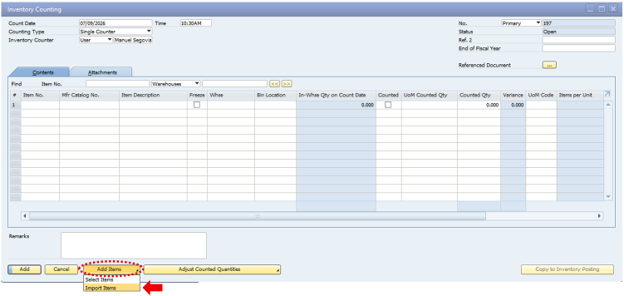
Navigate to: Main Menu > Inventory > Inventory Transactions > Inventory Counting Transactions > Inventory Counting
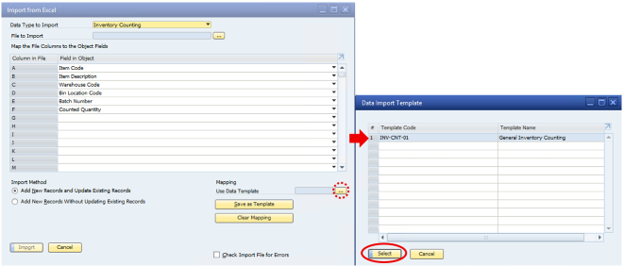
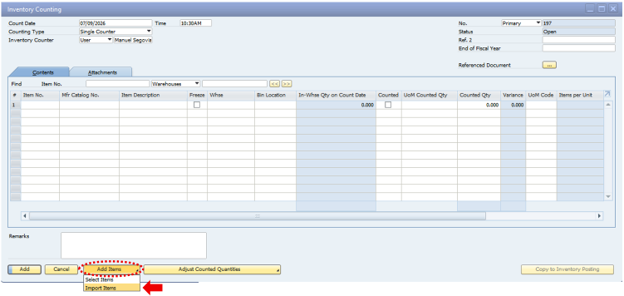
Click the Add Item button and select Import Items.
Your source file must begin with the ItemCode field, which is mandatory.
If you are unsure which columns to include or the order in which they should appear, you can use the sample layout below as a reference.
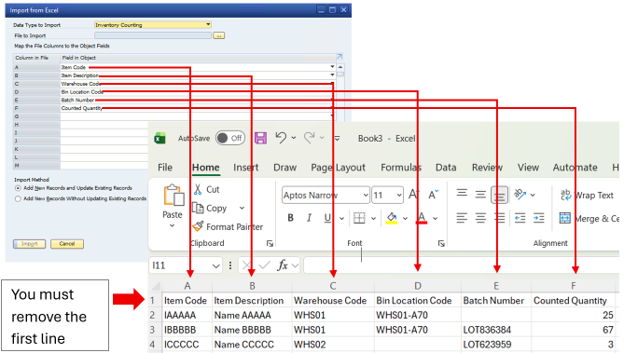
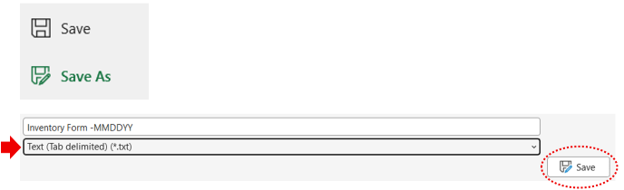
Before the file can be imported into SAP Business One:
Once you are satisfied with the template structure, save it for future use.
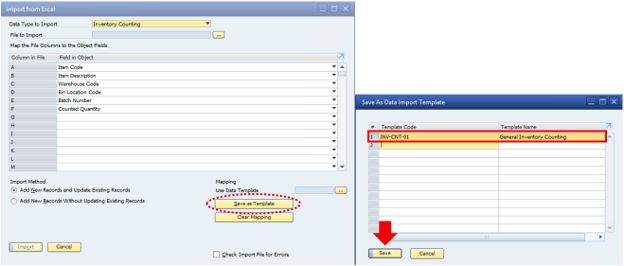
If you maintain multiple import templates, you can later select the desired template by clicking Use Data Template and choosing the appropriate one.
For organizations that do not use a Warehouse Management System (WMS) or mobile devices directly connected to SAP Business One, Excel-based counting sheets can simplify the physical inventory count process.
Would you like to streamline your counts? We can share the custom SQL query script referenced here for free with our clients and prospects.
To request your copy, please email us at sales@b1smartclient.com and include your contact information and company name.
A custom query report can be used to generate a counting sheet. Your counting team can then enter the physically counted quantities in the Counted Qty column.
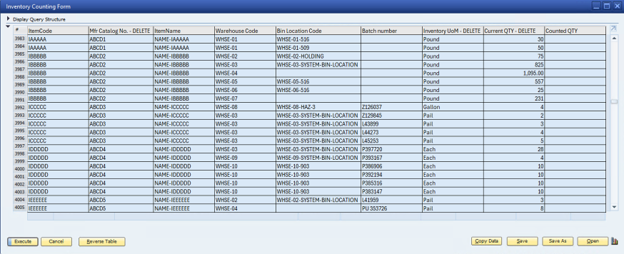
You can export the query results to Excel by:
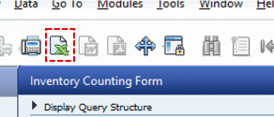
Option 1 – Export to Excel: Click the Excel icon within SAP Business One.
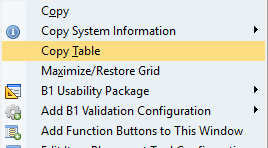
Option 2 – Copy the Table: Right-click anywhere within the query results and select Copy Table. Then paste the data into Excel.
If physical inventory exists but is not fully represented in SAP Business One, you may need to add additional rows to the spreadsheet.
Example: Suppose Item "AAAA" physically contains Batch "XXXX" with 10 cases, but SAP Business One only contains quantities for Batches "MMMM" and "NNNN". In this scenario, add a new row to the spreadsheet for the missing batch information so it can be included in the inventory count.
After physical counts have been entered:
Your inventory counting file is now ready for import.
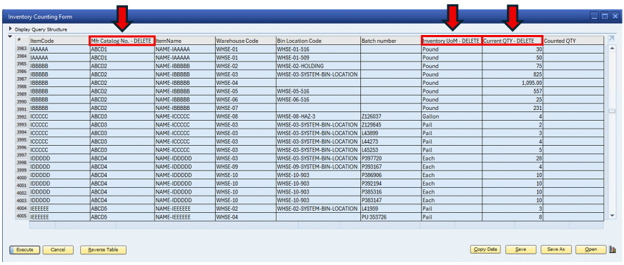
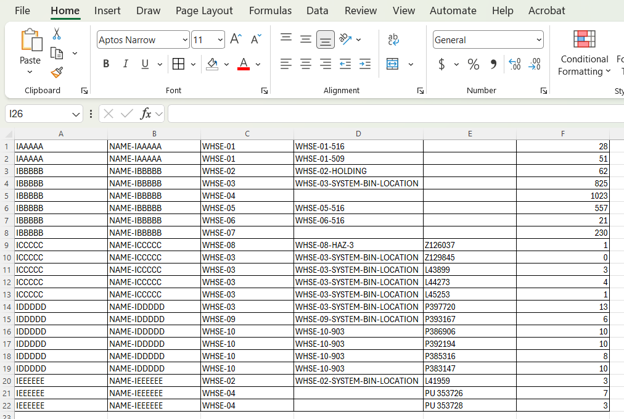
Step 1: Open Inventory Counting
Navigate to: Main Menu > Inventory > Inventory Transactions > Inventory Counting Transactions > Inventory Counting
Step 2: Select Import Items
Click the Add Item button and choose Import Items.
Step 3: Select the Import Template
Choose the template you previously created.
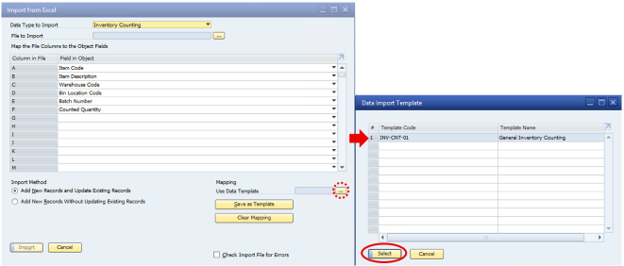
Step 4: Select the File to Import
Click File to Import and browse to your prepared .TXT file.
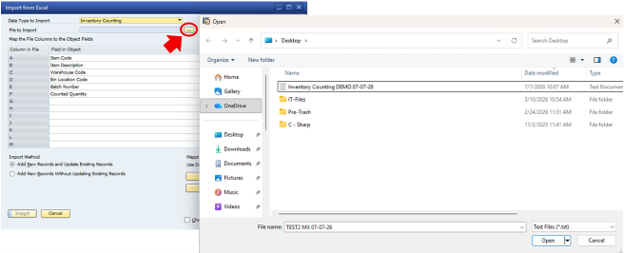
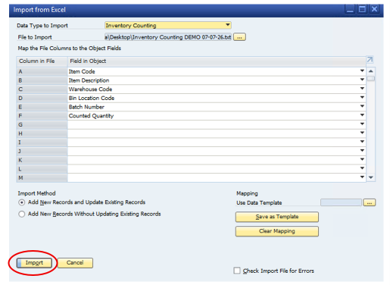
Step 5: Execute the Import
Click Import. If the import is successful, you will receive a green confirmation message.
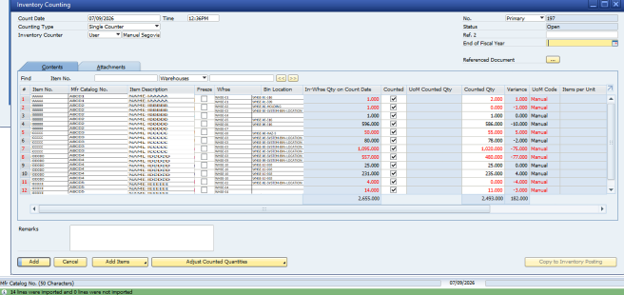
You may encounter the following message:
"Line 1; item code 'IAAAAA' in warehouse 'XX' bin location 'YYYYYY' already added to other open inventory counting documents."
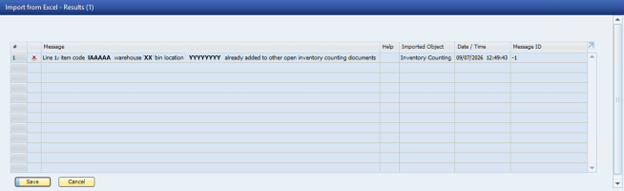
What This Means: The item, warehouse, bin, and batch combination already exists in another open Inventory Counting document. In this situation, verify whether the existing counting document is valid.